
Introduction
Gaining access to an email marketing account should not take long. Inconveniences caused by forgotten passwords, incorrect email addresses, data loss errors, browser inconveniences, and forgotten log-in credentials can make the process tedious.
If you manage email marketing using MailerLite for newsletters, campaigns, landing pages, forms, automations, and subscribers, you need to access your account reliably. The good thing is, as long as you know how to start and what details to provide, the MailerLite log-in process is fairly simple.
This guide to logging into MailerLite gives instructions for accessing your account in a simple, easy-to-follow format. The guide explains the official sign-in page, logging in via email and password, other authentication methods, the ‘Remember Me’ feature, password resets, browser issues, account reset requests, and tips to improve your account’s security.
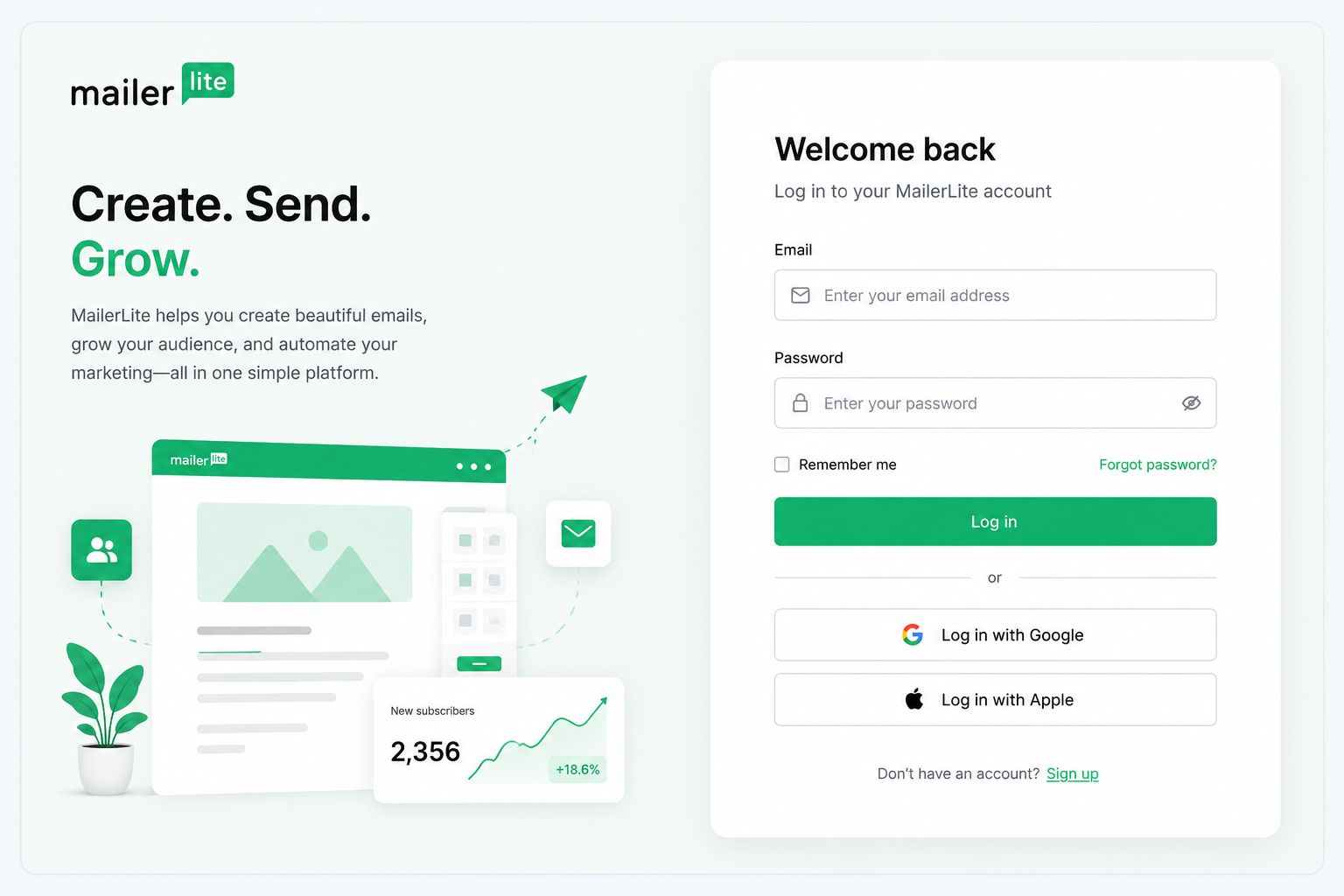
The current MailerLite account sign-in page has a field for email and password, a ‘Remember Me’ feature, a password reset link, and sign-in options for other services, such as Google, Apple, Microsoft, and GitHub.
Whether you are logging into MailerLite for the first time today, or you want to refer to this guide at a later time, this guide will take you through the process.
What Is MailerLite Used For?
Accessing your account makes more sense when you know the purpose of MailerLite.
MailerLite is an email and digital marketing platform that helps businesses, creators, bloggers, online stores, agencies, freelancers, and other organizations manage their marketing.
Depending on the plan you have, MailerLite may be used for the following:
- Create Campaigns
- Send Newsletters
- Manage Subscribers
- Create Sign-Up Forms
- Create Landing Pages
- Create Websites
- Create Automated Email Workflows
- Analyze Campaign Reports
- Manage Account
- Manage Users/Permissions
- Manage Domains
- Manage Billing
Because many of these features require you to be logged into your account, the MailerLite login page serves as the access point to your marketing workspace.
What to Do to Start MailerLite
The best place to start is at the actual MailerLite account log in page:
MailerLite Account Sign In
The current Sign In page accepts your email and password, offers a password recovery option, and shows other methods for signing in.
If MailerLite is a tool you use often, you may want to bookmark the official account page for quick access and to prevent landing on a fake log in page.
What is Required to Sign In?
To sign into MailerLite, you need access to the correct credentials.
Before going to the log in page, make sure you know:
Your MailerLite Login Email
This is the email address that is on your MailerLite account.
This Email may be:
- Your Personal Email
- Your Business Email
- Your Companies Email
- An Email that you use to sign up for other services
Your Password
This is the current MailerLite password. You will also need this if you do not use one of the supported external sign in options.
If you have recently changed your password, be sure you are not entering the old password that may be saved in your browser or your password manager.
Access to Your Email
It is essential to have access to your email to reset passwords, verify logins, and recover accounts.
MailerLite Login: Step-by-Step Instructions
We’ll detail the complete login procedure.
Step 1: Open Your Browser
Open the web browser of your choice.
You may use a recently used browser such as Chrome, Edge, or Firefox, among others.
If you are using a mobile device, open the business browser available on your phone or tablet.
Step 2: Go to the Official MailerLite Account Page
Type the official MailerLite account webpage in your browser.
Open MailerLite Login
Before typing your information, verify the web address.
This is a crucial security practice because phishing scams can create fraudulent copies of well-known service sites.
Step 3: Find the Email Address Field
On the sign-in page, locate the email address entry field.
Type in the email address associated with your MailerLite account.
Be sure to type it correctly.
For example:
marketing@example.com
Entering a different personal or business email will not give access to the account if that address was not used to create the account.
Step 4: Type Your Password
Type the account password.
If you are typing the password manually, verify that Caps Lock is not on.
Remember, the password may contain letters in both uppercase and lowercase.
If your password is saved to a password manager, check the login information against the password you are planning to use.
Step 5: Determine If You Want to Use ‘Remember Me’
The MailerLite log in page features a ‘Remember Me’ option.
This option is useful on personal private computers.
You should be more cautious using the ‘Remember Me’ option on:
- Public Computers
- Office shared computers
- Library computers
- Internet cafe computers
- Someone else’s devices
On shared devices, you should definitely avoid saving or remembering account access.
Step 6: Click Sign In
Once you have entered the required information, click the ‘Sign In’ button.
The entered credentials will be processed by MailerLite, and if successful, logged into your account.
If you have additional verification set, please complete that step to continue.
What Happens After You Log In?
Once authentication is successful, you may access your MailerLite workspace.
The exact dashboard view and features available to you will depend on the configuration of your account and the plan you are subscribed to.
Your account allows you to work on the following:
Campaigns, Subscribers, Automations, Forms, Landing pages, Websites, Reports, Domains, Account Settings.
The login process allows you to authenticate your account access. What you can view after the signing in process, is dependent on your account and available features.
How to Use Google, Apple, Microsoft, or GitHub Sign In
Some people do not want to be bothered entering their email and password each time the select to log in.
The MailerLite account page now features other options to log in, including Google, Apple, Microsoft, and GitHub.
If any of these options are featured on your MailerLite account, select the applicable provider and follow the authentication directions.
Google Auth
Select Google if you use Google to sign into your MailerLite account. You may need to select the Google account that corresponds to your MailerLite account.
Apple Auth
Apple users may have the option to sign in with Apple. Follow the steps for Apple authentication and complete any necessary verification.
Microsoft Auth
If your MailerLite account is authenticated with Microsoft, select Microsoft and follow the steps.
GitHub Auth
Currently, MailerLite has GitHub as a sign in option.
What if You Have Multiple MailerLite Accounts?
Some users have multiple MailerLite accounts because they have separate accounts for different businesses, websites, or other use cases. This can be confusing to sign in for. For example, someone could have:
- An account for their business
- An account for their personal newsletter
- An account for a project with a different client
If you enter the email for your business account, you should not expect to be signed in to your personal newsletter account. You should know which of your emails corresponds to the account you are trying to sign in to.
Also read:- Compatibility Test Explained
What if You Don’t Know Which of Your Emails is Linked to your MailerLite Account?
This is easier to answer than forgetting a password. Think about the year that you made the account.
Determine the following:
- Which email received the MailerLite notifications?
- Which email got the account verification message?
- Which email got the campaign or billing notifications?
- Which email is your personal email or company email?
- If the account was set up for your business by someone else, which email did they use?
Check your emails for old MailerLite messages. The following might help your search:
One of the following might help find the email connected to the account:
- MailerLite
- Welcome
- Verify email
- Campaign
- Account
- Billing
- Newsletter
How to Reset Your MailerLite Password
If you have the email and just need the password, you can use the password reset option for a quick solution because MailerLite has a password reset option. This allows the user to submit their email and receive a request to reset their password.
MailerLite Password Reset
The process is fairly simple.
Step 1
Access the MailerLite password reset page.
Step 2
Provide the email associated with your MailerLite account.
Step 3
Complete the security check, if applicable.
Step 4
Hit Send password reset link.
Step 5
Open the email.
Step 6
Open the message with the password reset.
Step 7
Complete the instructions to reset your password.
Step 8
Go back to the MailerLite login page, and log in with your new password.
This basic recovery process is confirmed by the current support documentation provided by MailerLite.
What Happens When a Password Reset Email is Not Received?
The reset request should not be considered a failure after only a couple minutes.
Check every necessary email folder when you made the request to find the email.
Check Spam
Look in your spam or junk folder.
Check Promotions
Some email providers put automated messages related to marketing in a promotions folder.
Search Your Mailbox
Searching for “MailerLite” can be more useful than searching through your inbox.
Verify the Address
Check if the email address that you used for recovery is the one associated with your MailerLite account.
Wait Briefly
They are working to send you the email and this might take a short period of time.
If the instructions do not show up, reach out to MailerLite through the Contact Us process. Select the login and upgrade issues.
What If You No Longer Can Access Your Email?
This is a bigger problem for access to your account.
Let’s say you signed up with MailerLite using your old company email and that email no longer exists.
A normal reset will not help you in this case, since you will not receive the recovery email.
According to MailerLite’s support, if you no longer can access the email associated with your Account, you need to write to support with your new email and the email associated with your MailerLite account. More details will be needed to verify and complete this request.
Be cautious of the following.
- Reset password: You still access the account email.
- Email access lost: You need account recovery.
Do not create a new account if your MailerLite account is holding valuable lists, campaigns and other business related data.
How can I Change the Login MailerLite Email?
Your account still needs to be accessed to perform this task. MailerLite provides an account setting to change the login email.
As outlined in MailerLite’s documentation, to update your MailerLite email, access your profile, go to Login details, select Change email, provide your new email along with your current password, and then verify the changed email via the verification email.
This process is not the same as recovering a lost account.
If you can access your account, you are able to change your email more easily than if the account is not accessible.
How to Change Your MailerLite Password
If you are still aware of your current password and wish to create a new one, you do not have to go through the lost password process.
MailerLite instructs you to go to My profile, scroll to Login details, choose Change password, enter your current password, the new password, confirm the new password, and save changes.
Changing a password can come in handy if:
- Someone else has your password
- You have shared your password in the past
- You are improving team security
- You have changed your team
- You are following a security policy in your organization
- You are improving your account security
- You are following a security policy in your organization
Ensure that your new password is unique and not used on any other platform.
MailerLite Login Problems?
If your credentials are not logging you into your account, go through the following.
Ensure You Used the Correct Email
Make sure you did not misspell your email.
Ensure Correct Case was Used
Ensure you are using the correct case, if your password is case sensitive.
Try Another Browser
There could be a browser-based issue that prevents you from logging in.
Reset the Password
If you do not remember your password attempt, go through a password reset.
Check Your Internet Connection
Ensure that your internet connection is functioning.
Enable Private Browsing
Using a private browsing window can help determine if the issue lies with cookies or an extension.
Disabling Extensions
Browser extensions may block scripts on certain websites. Disable these extensions temporarily.
When users report issues with logging into their accounts, MailerLite helps troubleshoot their typos in the URL or email address, checks to see if the Caps Lock key is on, recommends using a different browser, and suggests resetting the password.
Also read:- Free Enneagram Test
Browser Issues When Logging In
To help improve the speed of browsing certain websites, browsers will save an assortment of data. Some of this saved data includes:
- User Preferences
- Saved Passwords
- Cached Files
- Cookies
- User Session Data
Stored data can become stale or outdated. This can happen if you update your password in MailerLite, but your browser continues to auto-fill your password with the old one.
If this is the case, enter your credentials manually and attempt the log in again. If this also fails, open the browser in a private browsing mode.
Logging Into MailerLite in Private/Incognito Browsing Mode
Using Private or Incognito browsing mode is a quick and easy way to perform this type of diagnostic test.
Step 1.
Open a Private Browsing Window.
Step 2.
Navigate directly to the MailerLite account page.
Step 3.
Manually enter your credentials.
Step 4.
Select the Log In button.
If your account log in is successful in Private Browsing Mode, but the log in fails in your browser, the issue is related to stored cookies, saved data, cache, browser extensions, or the auto-fill of stale credentials.
Once you clear these stored values, you can begin troubleshooting your browser before assuming there is an issue with your MailerLite account.
Should You Clear Cookies?
Clearing cookies can be useful, but don’t do it as a first step.
If MailerLite’s login page is being problematic, try as follows:
- Close and restart the browser.
- Open a private window and attempt a login.
- Clear site data for MailerLite, if needed.
Clearing all cookies will sign you out of every site. Try to clear only the data for the specific site.
What to Do If MailerLite Keeps Redirecting You
Having browsers redirect you can often be linked to browser sessions or cached data.
Try the following:
- Open a private window.
- Use a different browser.
- Clear the needed cookies.
- Restart the browser.
- Check your internet connection.
- Try again later.
If the problem persists in multiple browsers and on multiple devices, it may warrant contacting MailerLite for more support.
What If Your MailerLite Account Uses Two-Factor Authentication?
The addition of two-factor authentication (2FA) improves the security of an account.
Beyond a password, a second form of verification may be required for account access.
This helps secure an account if a password is discovered.
While 2FA adds an extra step, it can also impede your account recovery if you lose access to your 2FA method.
Mailerlite has addressed 2FA issues in their login support documentation.
If your 2FA is functioning, keep your recovery information safe.
Why Two-Factor Authentication Is Important
Email marketing accounts may contain aspects of your business that could be very valuable.
Depending on your activities, your account can include the following:
- Subscriber information
- Campaign history
- Email templates
- Landing pages
- Automation workflows
- Domain settings
- API tokens
- Billing information
MailerLite encourages you to turn on 2FA to give your account an extra layer of protection.
You should not consider a password your only line of defense.
What if You Think Your Account is Hacked?
You should act fast if you think someone is using your MailerLite account without your permission.
MailerLite suggests you enforce the following security measures immediately: change your password, enable 2FA, check your account activity, get in touch with support, and do a malware scan on your PC.
A reasonable next step would be:
1. Change the Password
You should create a new password that is unique and has not been used in any other instance.
2. Enable 2FA
You should add an additional authentication layer for greater protection.
3. Review Account Activity
You should check for any campaigns or subscriber activity that looks out of the ordinary or for any activity that you did not perform.
4. Contact MailerLite
You should support your case and report that you think the account has been compromised.
5. Secure Your PC
You should be sure to update your OS and your browser, and do a security scan.
Don’t Share Your MailerLite Password
If there are many people who collaborate and help on the email marketing account, your account security will suffer if you are sharing one password.
You should see every collaborator as a potential account security compromise. As part of its security best practices, MailerLite suggests using the user management feature to assign individual users with the level of permission that you deem appropriate. Available roles include Administrator, Manager, Viewer, Accountant and others, and custom permissions is a feature that has been implemented.
This way of working has significant benefits, such as:
Improvement in Account Security
Your Collaborators Each Have Their Own Access
Streamlining the Process for Granting or Changing Access
You can alter someone’s account access or permission without altering the password for the master account.
Better Control
Different users can be given access to different areas.
For instance, a contractor reviewing reports may operate with a different level of access than an admin.
Is MailerLite Login Safe?
MailerLite offers some account security, but as with any other service, the extent of the account’s security largely depends on the user’s access management.
MailerLite outlines a few account security threats, which include weak passwords as well as phishing, malware, and unsecured networks.
To mitigate exposure to these threats:
- create complex and unique passwords,
- ensure 2FA is always activated,
- avoid clicking on links that seem suspicious,
- regularly update your device,
- never access your account on a foreign or public device,
- never share your password,
- create team accounts instead of personal accounts whenever you can,
- keep your recovery email secure.
Limit Public Wi-Fi Access When Logging In
Using public Wi-Fi means you may not be able to access your account securely.
If you are working from a public location, try to avoid accessing your MailerLite account over Wi-Fi that lacks security.
In some cases, you may have no choice but to access your account using public Wi-Fi. If that is the case, ensure you are using a VPN and your organization’s other security protocols.
What Happens to an Inactive MailerLite Account?
Login issues may stem from more than just forgetting your password.
Account inactivity can also be the cause.
According to current MailerLite documentation, if an account has not been accessed in three years, the account and its associated data will be deleted from their systems. Prior to the account deletion, users will be notified.
This means you should not assume a login problem is a password issue if you have not used an account in a long time.
MailerLite Login for New Users
You cannot log in to MailerLite if you don’t have an existing account. You need to register.
To sign up, the current page has a short form. It asks:
- The name of your company or organization
- Your name
- Your email
- Your password
Additionally, there are options to sign up through third-party services, and the page is currently offering a 14-day trial of some of the premium features that are normally paid.
The other steps that you need to perform to create an account are verification of your email, and you have to configure your account.
As you can see, there are two steps.
- For new users: create an account
- For existing users: log in.
This will eliminate confusion about what you are supposed to do on the MailerLite website.
How to Make Your Next Login Faster
Once you created an account, sign in more conveniently using one of the following.
Bookmark the Login Page
Save the official account page in your browser.
Use a Password Manager
Store your credentials with a password manager.
Keep Your Email Accessible
Make sure you have access to your email account associated with MailerLite.
Keep 2FA Recovery Information Safe
If you use two-factor authentication, keep the recovery info safe.
Keep Your Browser Updated
This will enhance security.
A Simple MailerLite Login Checklist
Go through this list of steps to log in.
- Go to the official MailerLite login page.
- Verify that you are on the correct website.
- Type your email.
- Type your password.
- Verify that Caps Lock is not on.
- Verify that the Remember Me checkbox is set as you want it.
- Click the Sign In button.
- Finish any additional authentication that is requested.
If you are unable to log in, verify that your email and password are correct and try a different browser if necessary.
Reset your password if you don’t remember it.
If recovery attempts fail, reach out to MailerLite support.
This provides a simple solution to most common problems.
Questions and Answers
Where is the MailerLite login page?
The MailerLite login page is at accounts.mailerlite.com.
How do I login to MailerLite?
Go to the login page, enter your email and password, and select Sign In, or use a supported method of signing in that is connected to your account.
What should I do if I do not remember my MailerLite password?
Visit the password recovery page, enter your email account, and you will receive an email with instructions on how to reset your password.
If I do not receive a password reset email, what should I do?
Check your spam, junk, and promotions folders. Make sure you entered your email account correctly. If you do not receive the instructions, then attempt to support MailerLite with your log in issues.
Can I update the email I use to login to Mailerlite?
Yes, if you are able to log in to your account, you can update the email account you use to login by going to your profile and completing the Email Verification step.
Am I able to update my MailerLite password while I am logged in?
Yes, you can Change Password via the Login Details section of your profile on MailerLite.
Why is my login information incorrect in MailerLite?
First, check all the usual suspects. Your email/username, your password, or is Cap Locks on? Also check saved logins in your browser. If you still think the password is correct, consider resetting your password.
Can I access MailerLite from any other computer?
Yes. Access your MailerLite account from any other supported computer via the MailerLite account page.
Is the Remember Me feature safe to use?
It is somewhat safe to use on your computer, especially if it is not shared, but is safe to use on shared or public computers.
What happens if you no longer have access to your account email?
Use the account access support of MailerLite. MailerLite notes that if a user does not have access to the original email, the user will have to provide the old email and a new email and will have to complete other verifications.
What happens if I no longer have access to my 2FA?
If you cannot access your 2FA, MailerLite asks that you use their support for login and upgrade issues.
Is it OK to share your MailerLite password with employees?
You can share your password, but creating multiple users with the Access permission is more secure and MailerLite recommends that approach.
Does MailerLite really remove accounts that are inactive?
According to MailerLite, accounts that are inactive for 3 years will be closed, and users will be notified before that happens.
Conclusion
Access to your MailerLite account is as easy as entering your email and password and completing any other verifications that your account may require.
The first step is to access the official MailerLite account page. Once at the page, review spelled account details, ensure the CAPS/Num Lock button is not on, and enter account details.
If the login fails, you may reset your MailerLite account password. If you do not receive the reset email, check your Spam promotions and ensure you provided the email used to register your account.
If you do not have access to the email used to register your account, and a reset code has not been provided, you may need to contact the MailerLite support team for help with two factor authentication.
For account security and protection you should use a strong unique password, and two-factor authentication. Avoid sharing login links. Instead, provide each employee their own account with the permissions as necessary.
This should help you with the login process for MailerLite. The process should be the same across any device you use. Ensure you use the official page and protect your credentials. If you have forgotten your details, use the credential recovery option.
Author bio:
Hello, I am a professional SEO Expert & Write for us Technology and submit a guest posts on different platforms- we provide a good opportunity for content writers to submit guest posts on our website. We frequently highlight and tend to showcase guests.